> ## Documentation Index
> Fetch the complete documentation index at: https://docs.ziina.com/llms.txt
> Use this file to discover all available pages before exploring further.
# Connect Ziina to your WooCommerce website
> Start accepting payments on your WooCommerce website with Ziina in just a few steps. This guide will walk you through the process to ensure a seamless setup.
export const platform_0 = "WooCommerce"
## Before you begin
To activate Ziina on {platform_0}, make sure:
* You’ve completed onboarding.
* Your Ziina account is verified. {/* (TODO: modify wording to disambiguate with business verification) */}
# Requirements
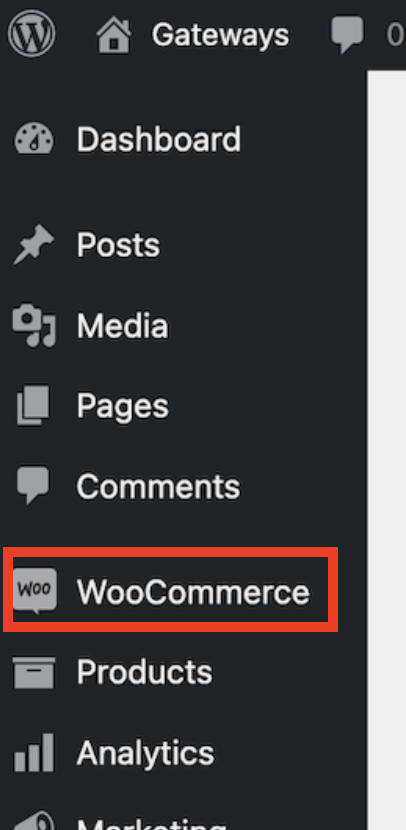
Open your store website, and check the side bar. If WooCommerce appears as
shown in the screenshot below, continue following the steps in this guide.
 Click on [this link](https://ziina.com/business/connect/), select
WooCommerce and enter your phone number, OTP and email. You will immediately
get access to your API key. This is the only time you’ll see it, so make
sure you store it somewhere safe. If you don't already have a Ziina account
your integration won't work until you download the app and complete your
onboarding process (it takes 4 minutes).
Download the [Ziina
App](https://ziina.com/business/?shortlink=gatewaypayment\&c=api_link\&pid=website_payments\&af_click_lookback=30d\&af_xp=custom\&source_caller=ui)
on your phone, click on Ziina Professional, enter your phone number and
complete the onboarding steps (you will need your Emirates ID). You won't be
able to receive payments on your website until this step is completed and
your account is verified.
# Installing the Ziina plugin
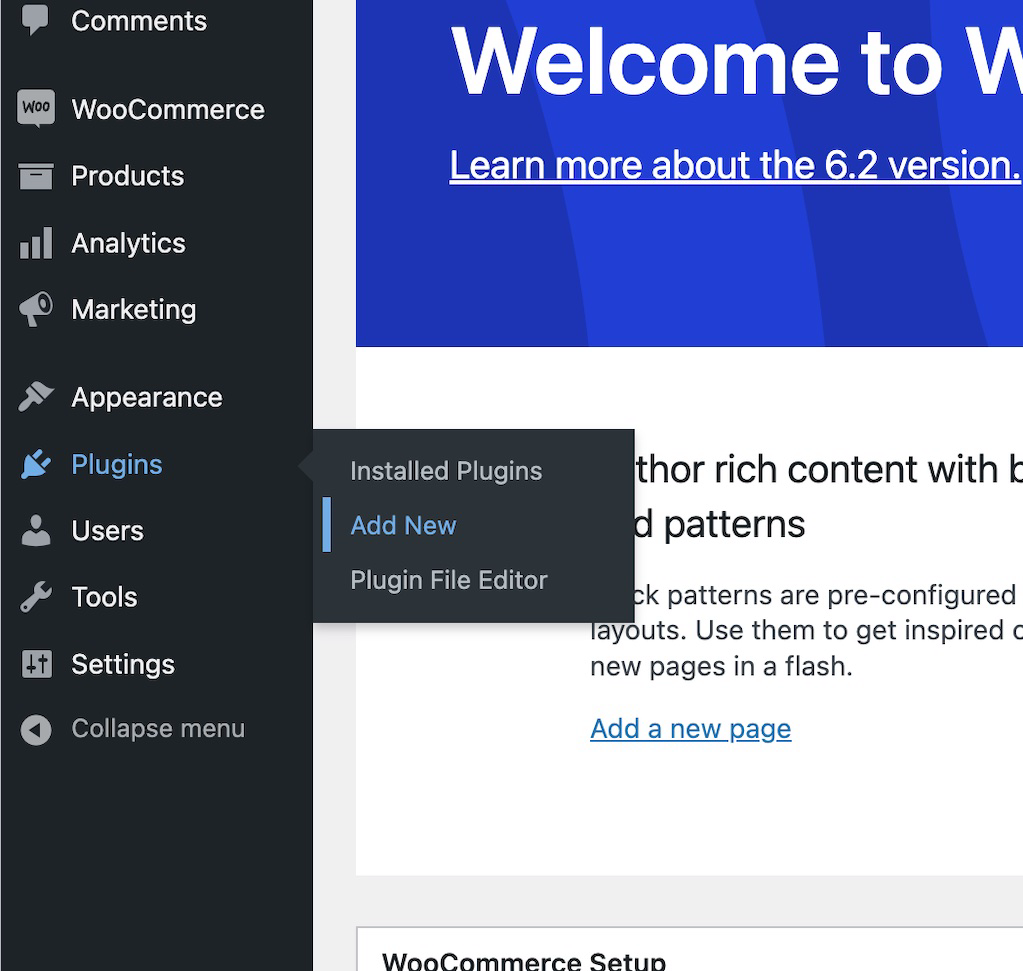
In the left sidebar, hover over **Plugins** and then click **Add New**
Click on [this link](https://ziina.com/business/connect/), select
WooCommerce and enter your phone number, OTP and email. You will immediately
get access to your API key. This is the only time you’ll see it, so make
sure you store it somewhere safe. If you don't already have a Ziina account
your integration won't work until you download the app and complete your
onboarding process (it takes 4 minutes).
Download the [Ziina
App](https://ziina.com/business/?shortlink=gatewaypayment\&c=api_link\&pid=website_payments\&af_click_lookback=30d\&af_xp=custom\&source_caller=ui)
on your phone, click on Ziina Professional, enter your phone number and
complete the onboarding steps (you will need your Emirates ID). You won't be
able to receive payments on your website until this step is completed and
your account is verified.
# Installing the Ziina plugin
In the left sidebar, hover over **Plugins** and then click **Add New**
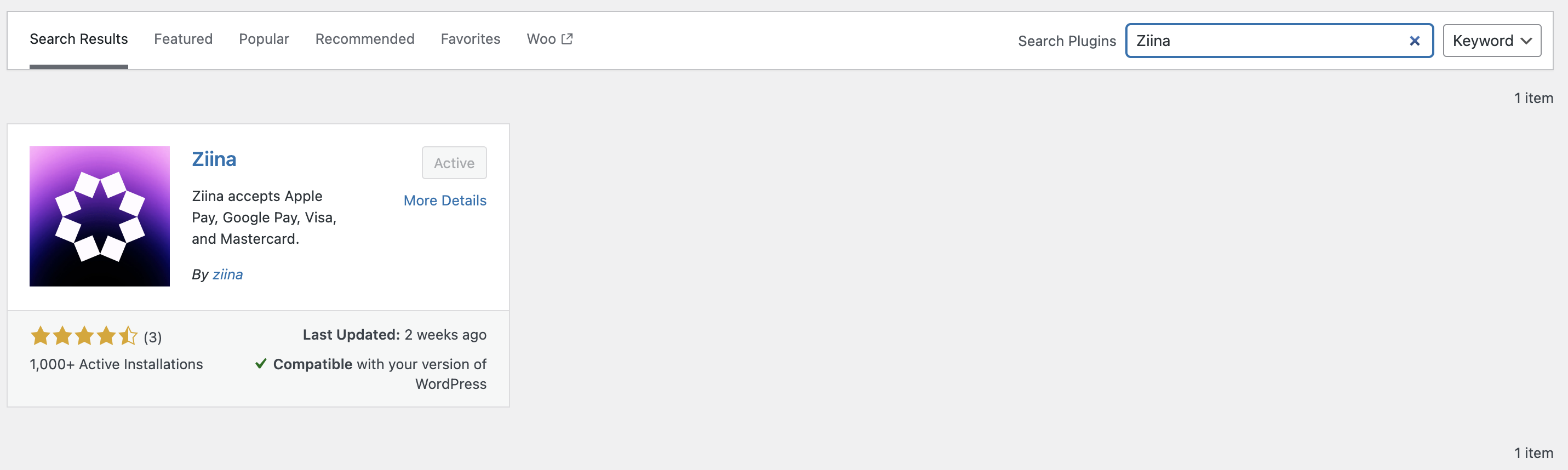
 Enter "Ziina" in the search bar and click **Install Now** to install the
plugin.
Enter "Ziina" in the search bar and click **Install Now** to install the
plugin.
 # Configuring the Ziina plugin
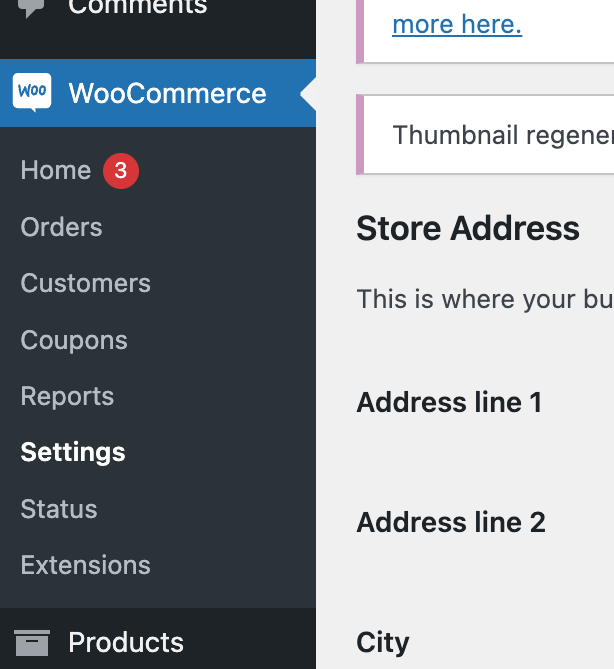
Click on **WooCommerce** in the left sidebar and click on **Settings**
# Configuring the Ziina plugin
Click on **WooCommerce** in the left sidebar and click on **Settings**
 Select **Payments** at the top of the page.
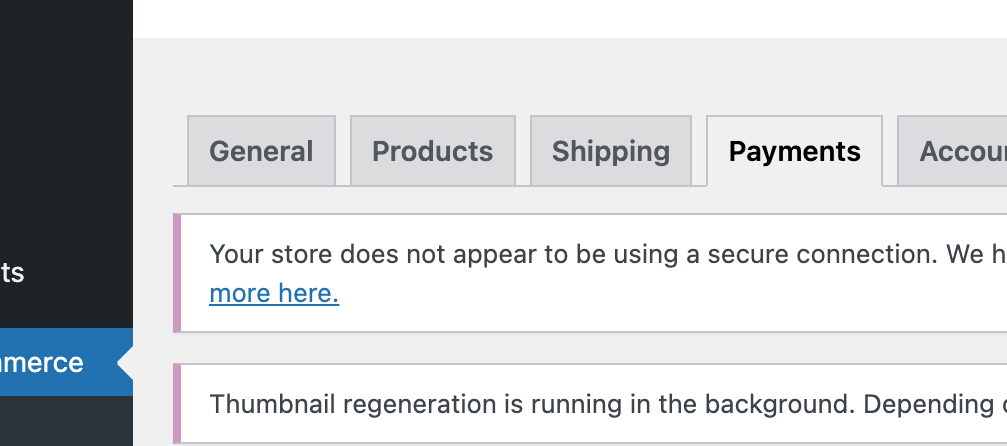 Ziina payment toggle is supposed to be switched on
 Enter your API key in the field **API key**
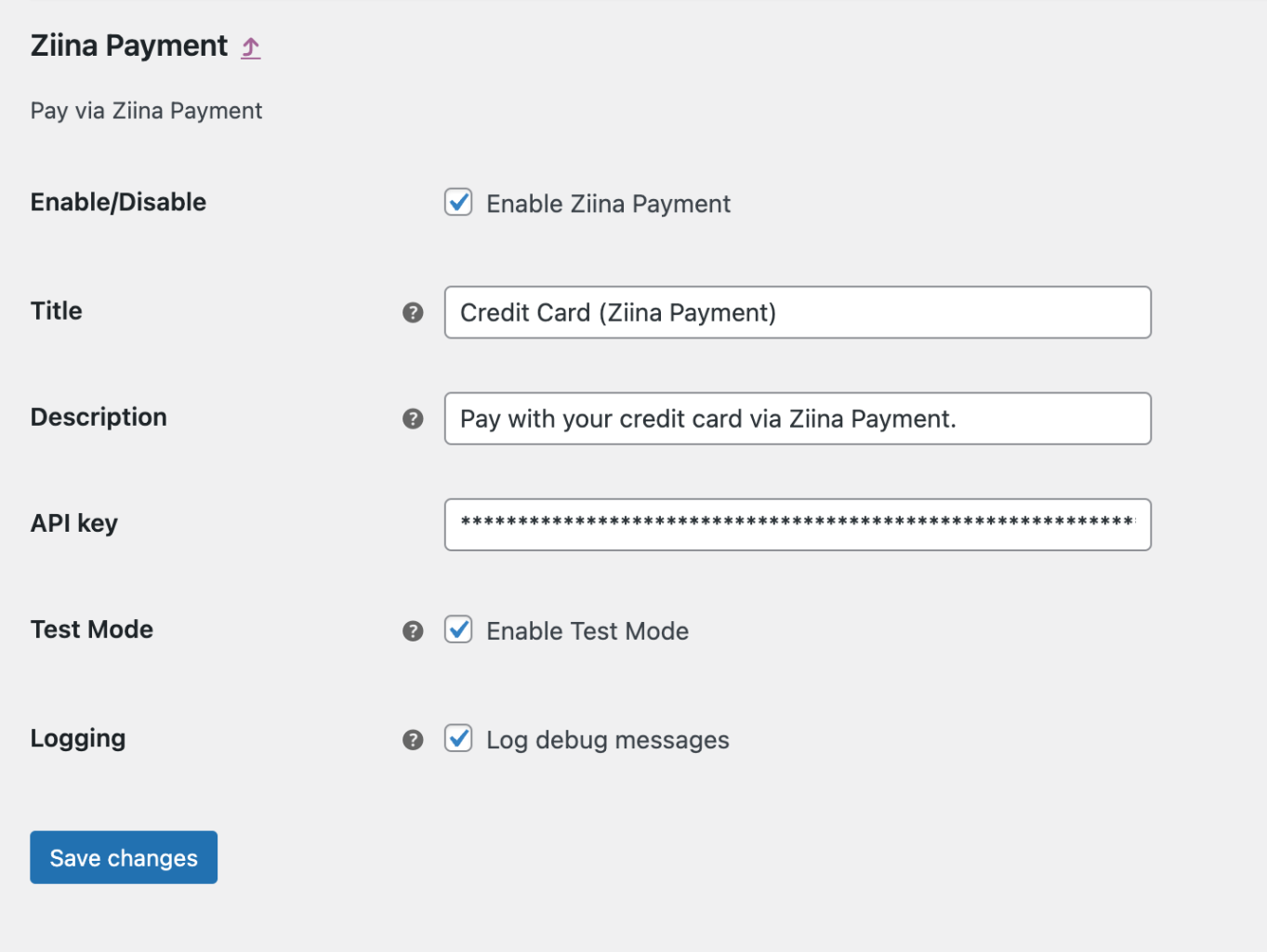 You can also change the **Title** and **Description** of the Ziina payment
option. The title you enter is what appears on your website for your
customers. Let them know they can use this payment option to pay by
credit/debit card, Apple Pay, and Google Pay.
# Completing a test transaction
To test a transaction, check the box in Ziina payment settings titled **Test mode**.
You can also change the **Title** and **Description** of the Ziina payment
option. The title you enter is what appears on your website for your
customers. Let them know they can use this payment option to pay by
credit/debit card, Apple Pay, and Google Pay.
# Completing a test transaction
To test a transaction, check the box in Ziina payment settings titled **Test mode**.
 You can now test the payment flow, and your card will not be charged. Be sure to uncheck this box before making your site live.
## You’re all set
You can now track all your WooCommerce payments directly from the Ziina app. It’s simple, fast, and designed to help you manage your business with ease.
## Need help?
If you have questions, visit our [help center](https://ziina.com/help-center) or contact us at [support@ziina.com](mailto:support@ziina.com).
You can now test the payment flow, and your card will not be charged. Be sure to uncheck this box before making your site live.
## You’re all set
You can now track all your WooCommerce payments directly from the Ziina app. It’s simple, fast, and designed to help you manage your business with ease.
## Need help?
If you have questions, visit our [help center](https://ziina.com/help-center) or contact us at [support@ziina.com](mailto:support@ziina.com).